> ## Documentation Index
> Fetch the complete documentation index at: https://docs.wyzehost.com.br/llms.txt
> Use this file to discover all available pages before exploring further.
# Como conectar em uma VPS Windows
> Neste guia, mostraremos como você pode se conectar na sua vps.
## Guia em vídeo:
## Passo a passo (Versão escrita)
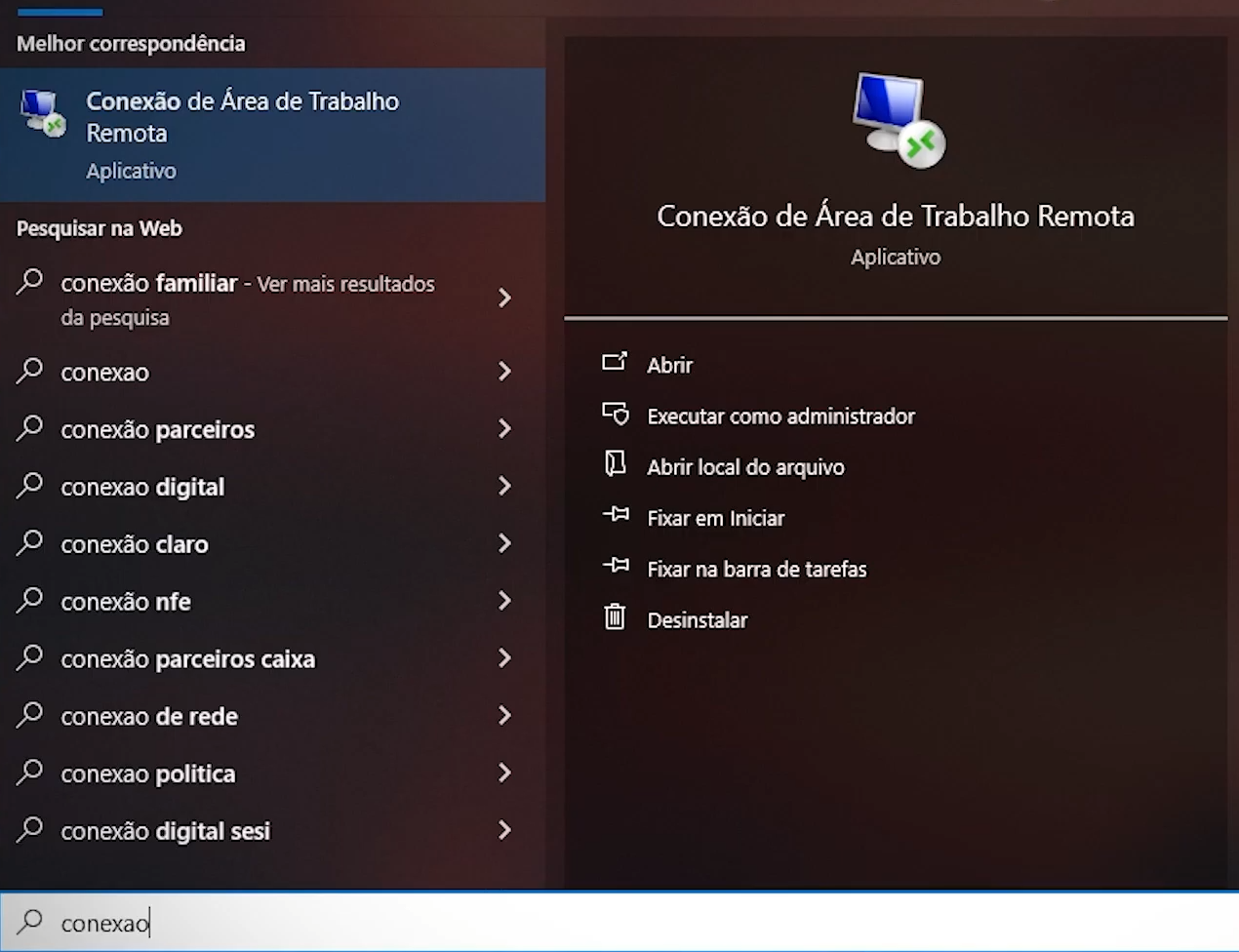
1. No seu computador, acesse a barra de pesquisa e procure por: **conexão de área de trabalho remota**.
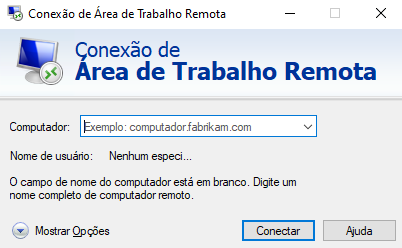
2. Na conexão remota, digite o IP do seu vps.
3. Depois clica em **conectar**.
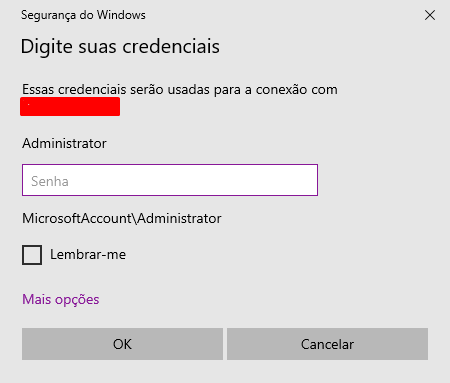
4. Preencha com o **nome de usuário** e **senha** no campo correspondente.
Se você tiver qualquer dúvida, entre em contato com a nossa equipe de suporte
em nosso [WhatsApp](https://wa.me/5511912842643)
e [Discord](https://discord.com/invite/x3qFazUTZ7).
 2. Na conexão remota, digite o IP do seu vps.
3. Depois clica em **conectar**.
2. Na conexão remota, digite o IP do seu vps.
3. Depois clica em **conectar**.
 4. Preencha com o **nome de usuário** e **senha** no campo correspondente.