> ## Documentation Index
> Fetch the complete documentation index at: https://docs.wyzehost.com.br/llms.txt
> Use this file to discover all available pages before exploring further.
# Como conectar na sua VPS pelo celular
> Neste guia, mostraremos como você pode se conectar na sua vps pelo celular.
## Guia em vídeo:
## Passo a passo (Versão escrita)
1. Instale o aplicativo no seu celular.
• Aplicativo para Android: [Remote Desktop](https://play.google.com/store/apps/details?id=com.microsoft.rdc.androidx\&hl=pt\&gl=pt)
• Aplicativo para IOS: [Microsoft Remote Desktop](https://apps.apple.com/br/app/microsoft-remote-desktop/id714464092)
2. Acesse o aplicativo, e clique em **+** para acessar o VPS.
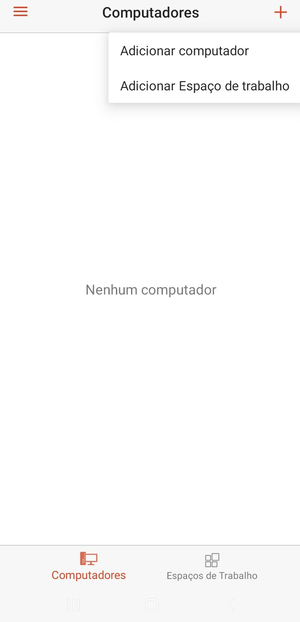
2. Selecione a opção **adicionar computador**.
3. No campo **nome do computador**, insira o IP do seu vps.
4. Em seguida, basta clicar em **salvar** e retornar para o menu principal.
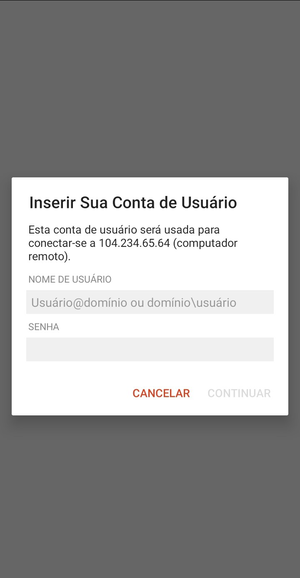
5. Preencha com o **nome de usuário** e **senha** no campo correspondente e estabelecerá conexão com o seu VPS.
Se você tiver qualquer dúvida, entre em contato com a nossa equipe de suporte
em nosso [WhatsApp](https://wa.me/5511912842643)
e [Discord](https://discord.com/invite/x3qFazUTZ7).
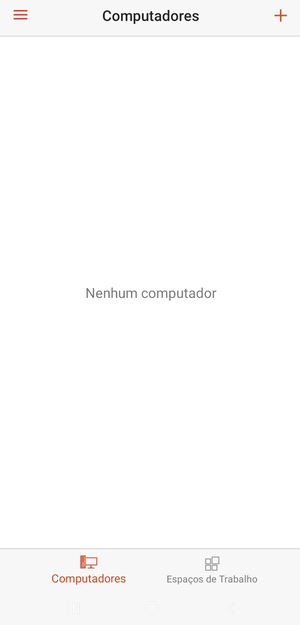 2. Selecione a opção **adicionar computador**.
 3. No campo **nome do computador**, insira o IP do seu vps.
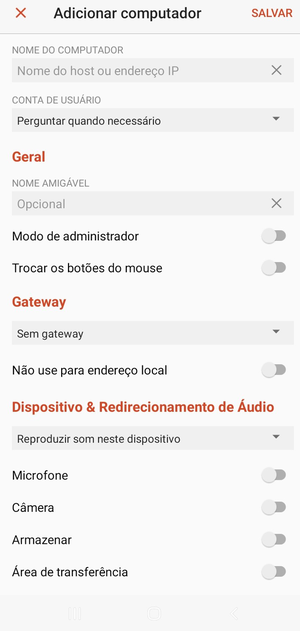 4. Em seguida, basta clicar em **salvar** e retornar para o menu principal.
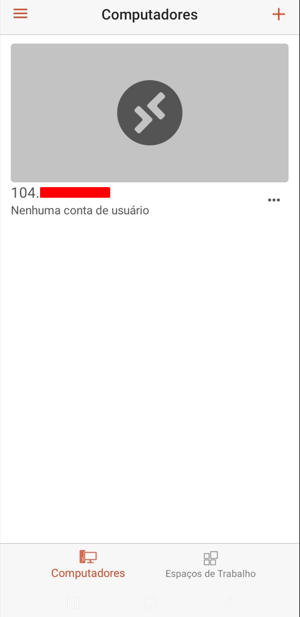 5. Preencha com o **nome de usuário** e **senha** no campo correspondente e estabelecerá conexão com o seu VPS.